Moving your files from Dropbox to OneDrive is a great way to save or clear up space in Dropbox and make your files easily accessible across Microsoft products. And OneDrive offers 5GB of free storage and more flexible storage plans, while Dropbox Basic only provides 2GB of free space.
There are three ways of file transfer from Dropbox to OneDrive – relying on a Dropbox to OneDrive migration tool and two manual transfer methods. Check them and choose the way you prefer.
#1. Migrate Dropbox to OneDrive with One-Click – Easiest
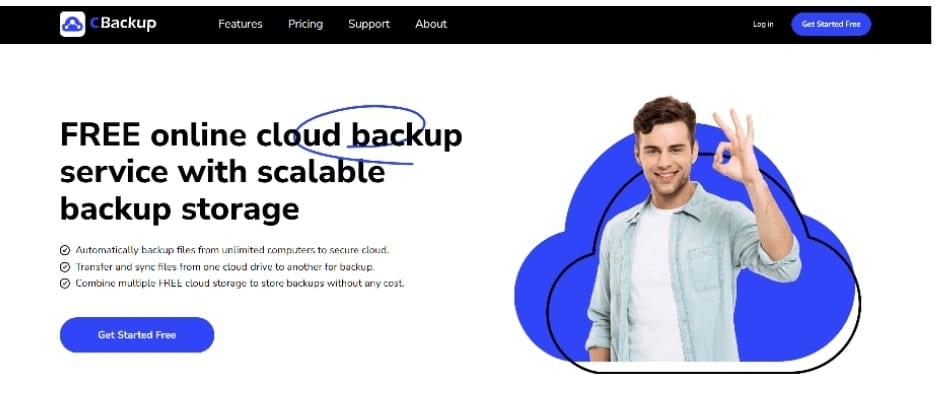
If you want to quickly move Dropbox files to OneDrive while ensuring data security, it is highly suggested to try the free and professional cloud file transfer service, CBackup. With this tool, you can transfer files from Dropbox to OneDrive without switching cloud accounts or downloading and uploading.

Also, this software has the following features and advantages:
Support multiple clouds – Apart from Dropbox and OneDrive, it also supports Google Drive, FTP/SFTP, and other popular cloud services.
Auto migration – You are able to perform auto Dropbox to OneDrive migration with Scheduler, in a daily, weekly, or monthly mode.
File Filter – It allows you to exclude specific file types or contain only some types of files when doing Dropbox to OneDrive transfer.
High-speed transfer – It sets no limitations on file transfer speeds, file types, as well as file sizes.
OAuth authorization system – It accesses your cloud accounts without keeping username and password, but directing to the cloud server providers.
Cloud backup – It is capable of doing free cloud backup from local PC to clouds, as well as backup data from one cloud to another, keeping unlimited backup versions for restoration.
CBackup provides the easiest way to transfer files from Dropbox to OneDrive without downloading files or installing apps. Now, follow the steps below to do the cloud transfer quickly and easily.
Step 1. Sign up for CBackup – Free
To use CBackup for Dropbox to OneDrive migration, you have to first create an account on its official website, and then log in to its web app for online transfer.

Step 2. Add Your Dropbox and OneDrive Accounts
Click the My Storage tab on the left, tap on Add Cloud, and select Dropbox or OneDrive to add them to CBackup separately.

Step 3. Migrate Dropbox to OneDrive with Cloud Sync
Go to the Sync Tasks tab and click on New Task. Hit Add Source to specify the Dropbox files you want to migrate, and click Add Destination to choose a directory in OneDrive as the destination. Finally, click Start Sync.

#2. Transfer Files from Dropbox to OneDrive via Download and Upload
If there are only a few files you wish to migrate from Dropbox to OneDrive, you can choose to do a manual transfer by downloading these files from Dropbox and then re-uploading them into OneDrive.
Step 1. Download Files: Open Dropbox web and log in. Mark the files you want to transfer, right-click on them, and select Download. Then, these files will be saved to your computer in a ZIP folder.

Step 2. Reupload Files: Sign in to OneDrive with your account, and click Upload > Files or Folder to locate and choose the Dropbox downloaded items for upload.

#3. Move Dropbox Files to OneDrive using Windows Explorer
Using a drap-and-drop play for Dropbox migration to OneDrive from the Windows File Explorer is also a common solution. But this option requires that you have to download and install both the Dropbox app and the OneDrive app on your PC.
Step 1. Log in to Dropbox and OneDrive desktop apps: Run and log in to Dropbox and OneDrive desktop programs, and open the Dropbox sync folder and OneDrive sync folder separately.
Step 2. Drag and drop files for migration: In the Dropbox folder, select the files you want to migrate to OneDrive. Next, drag and drop the files to the OneDrive folder.

Further Reading: How Do I Merge Dropbox and OneDrive?
After merging Dropbox and OneDrive, you can use the two cloud storage space together, and enjoy huge cloud space for free. But how to do it? CBackup can do you a great favour.
Step 1. Install the CBackup desktop client on your Windows computer and log in.
Step 2. If you have not added you cloud accounts, head to Storage > Add Cloud to add and authorize your clouds to CBackup.
Step 3. Then, click on Add Combined Cloud, tick your added OneDrive account and Dropbox account, and click Next. Then, hit Combine to finish the Dropbox and OneDrive combination.

With the combined cloud, you could use the Backup PC to Combined Cloud option on the Backup page to upload and save your PC files and folders.

Summary
In a word, to migrate Dropbox to OneDrive quickly and effortlessly, you need a cloud migration tool, like CBackup, to get it done without downloading and uploading or copying and pasting files laboriously. Besides, you can use CBackup to merge Dropbox and OneDrive for using them in one place.