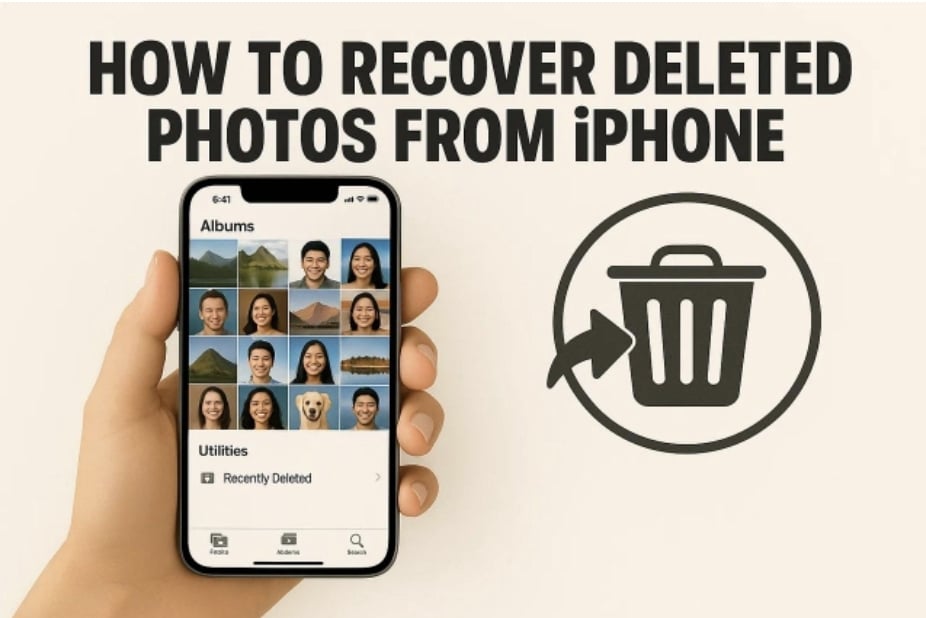
Experiencing the loss of your favourite pictures can make you browse the internet for a way to get them back. It can happen by accident, due to a system error, or after an update. However, the good news is that there are ways to bring them back, and you don’t need to be a tech expert to do so, either. With the right guidance, you can recover deleted pictures quickly and safely.
This guide walks you through several simple methods for iPhone data recovery, including options that work even if you don’t have a backup. Just follow the steps carefully, and your photos will be back in no time.

Part 1. What Happens When You Delete a Photo on iPhone?
As an image gets erased from your mobile, it’s not always gone forever. Before you panic, it helps a lot to find out what really happens in the immediate aftermath. Getting to know about this process helps in learning how to recover deleted photos from an iPhone.
Right after deletion, your pic isn’t immediately wiped from the device. Instead, it’s moved to a temporary place called the “Recently Deleted” folder. This section works like a safety net, giving you up to 30 days to change your mind and restore the photo easily. It is located in the “Photos” app, under the “Albums” tab.

Notably, when the 30-day window passes or you manually delete the photo from this folder, it gets permanently removed from your phone’s storage. Moreover, if iCloud Photos is enabled, the deletion may sync across all your devices. That makes it harder to retrieve the image from somewhere else.
However, don’t worry if you’ve already checked and the photo is no longer there. No available backup? No problem, as you still have a way to try and get your picture back.
Part 2. Recovering Photos via Local Data Recovery Software
Even if the picture is missing from the “Recently Deleted” folder, there’s still hope. The next step many people overlook is using a reliable local iPhone data recovery tool. When you delete a photo, the file isn’t instantly destroyed, but the space it occupies is marked as “Available” for new data.
Until something else overwrites that space, the photo data still exists inside your device. That is where local recovery software comes in to aid you. It scans the hidden or unallocated storage areas to locate and retrieve those files before they’re permanently lost.
Using the phone heavily after deletion may overwrite the data, reducing the chances of full recovery. So, if there’s no backup available, this method offers a solid chance to get your lost photos back safely.
Part 3. How Dr.Fone – Data Recovery Helps You Restore Deleted Images
When manually searching or using general tools feels overwhelming, there’s an easier way. A dedicated solution like Dr.Fone – Data Recovery (iOS) makes the process much more straightforward. That is especially true for those who aren’t very technical. This is the best iPhone data recovery software, designed to help iOS users recover lost data with just a few clicks.
Regardless of the reason, this tool works magic to get your memories back. Supporting all iOS devices and firmware versions, it can scan your device thoroughly and bring back what’s still recoverable. Its ability to preview deleted content before recovery makes it stand out.
That means you can check exactly what’s restorable and restore only what you want. Its ability to retrieve lost content from iCloud and iTunes also stands out. Follow these simplified steps to get back your lost photos:
Step 1. Begin by Choosing Data Recovery for Pictures
Commence the operation by running Dr.Fone – Data Recovery (iOS), heading over to the “Toolbox” module, and clicking “Data Recovery.” After that, select “iOS” and opt for the option called “Recover Data from an iOS device.”

Step 2. Continue by Scanning for Deleted Images
As you attach your iOS device, pick “Photos” along with any other data type you wish to recover. Afterward, press “Start Scan” so the tool can search for your missing images in the device storage.

Step 3. Restore or Save the Photos to Your Device
At this point, turn “Find My” off on your phone and hit “Restore to Device” or “Restore to Computer” to store chosen pictures on your mobile or system.

Frequently Asked Questions
Absolutely, the program is fully compatible with the HEIC format when it comes to getting deleted pics back. It is the default data type for images on most modern iOS devices. Once recovered, you can preview and export them in HEIC or convert them to more common formats like JPG.
It works with a wide range of iDevice models, from older versions to the latest iPhone 16 series. This program also supports various iOS firmware versions, including the most recent iOS 18 updates.
Your erased images stay recoverable until they’re overwritten by new data. When does that happen? It depends on your mobile usage afterward, which could happen quickly if you use it often. That’s why it’s important to start the recovery process as soon as you notice the loss. Delaying reduces the chances of a full or clean recovery.
Conclusion
In summary, losing your favorite picture on your iOS phone is not an experience anyone wants to face. With a clear understanding of how deletion works and the right tools at hand, recovery is often possible. While native options and manual methods can help in some cases, using a reliable solution like Dr.Fone – Data Recovery (iOS) makes the process faster and more successful.
Hence, when photos were recently lost or accidentally removed weeks ago, this iPhone data recovery software offers a safer way to bring them back.